
If you run a home inspection company or a similar service-based business, your Google Business Profile (GBP) is likely the lifeblood of your local lead generation. So, when you wake up to an email stating your profile has been suspended for “misrepresentation” or that your account is “restricted,” it can feel like a devastating blow.
Getting your profile back online requires more than just hastily submitting an appeal. You need to understand exactly how Google classifies your business, why their systems flagged you, and the specific steps required to prove your legitimacy.
Here is the complete guide to understanding Google’s policies, fixing your listing, and getting your business back on the map.
1. The Root Cause: Why Did You Get Suspended?
When a profile goes dark, it is usually tied to one of two major issues: a profile-level misrepresentation flag or an account-level restriction. Understanding the difference is critical to your recovery strategy.
The “Misrepresentation” Suspension
Google’s misrepresentation policy exists specifically to protect searchers from misleading results. Google states that they do not allow individuals to use Google Maps to mislead or deceive others. This is the most serious type of GBP suspension because it often indicates that Google believes the business is actively deceiving customers about its nature, location, or services. Common triggers include:
- Creating a listing for a business that operates primarily online or has no physical customer-facing location.
- Selecting business categories that imply services or credentials the business does not actually hold.
- Misalignment between the business details on the profile (like adding keywords or city modifiers to your name) and the real-world evidence behind the business.
The “Account-Level” Restriction
Sometimes, the problem isn’t just your profile; it’s the Google account managing it. If a merchant’s Google account is disabled, suspended, or deleted, they must fix the account issue before they can access their profile.
- If a merchant displays a pattern of violating Google Business Profile policies, their access may be restricted.
- When a Google account is restricted, all Business Profiles associated with that account will be automatically suspended.
- The restricted account must be reinstated before you can successfully add new content or reinstate the profile.
2. Storefront vs. Service Area Business (SAB): The Golden Rule
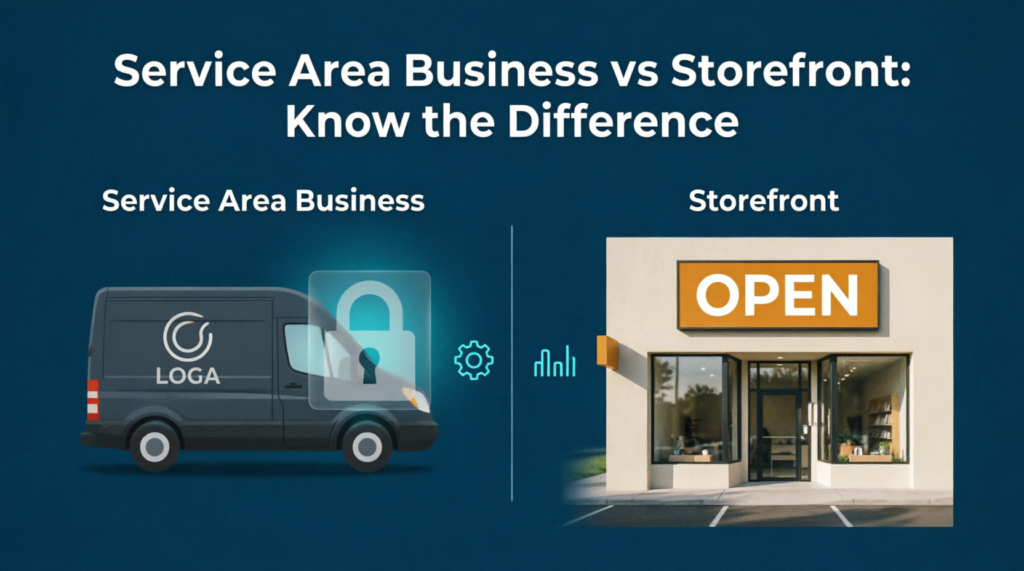
For home inspectors, plumbers, and professional cleaners, the most common reason for a misrepresentation suspension is mishandling your physical address.
Google categorizes businesses into distinct types. If your business visits or delivers to customers directly but doesn’t serve customers at its business address, Google classifies you as a Service Area Business (SAB).
Because your clients hire you to inspect their potential homes, you are an SAB. Here are Google’s strict rules for this classification:
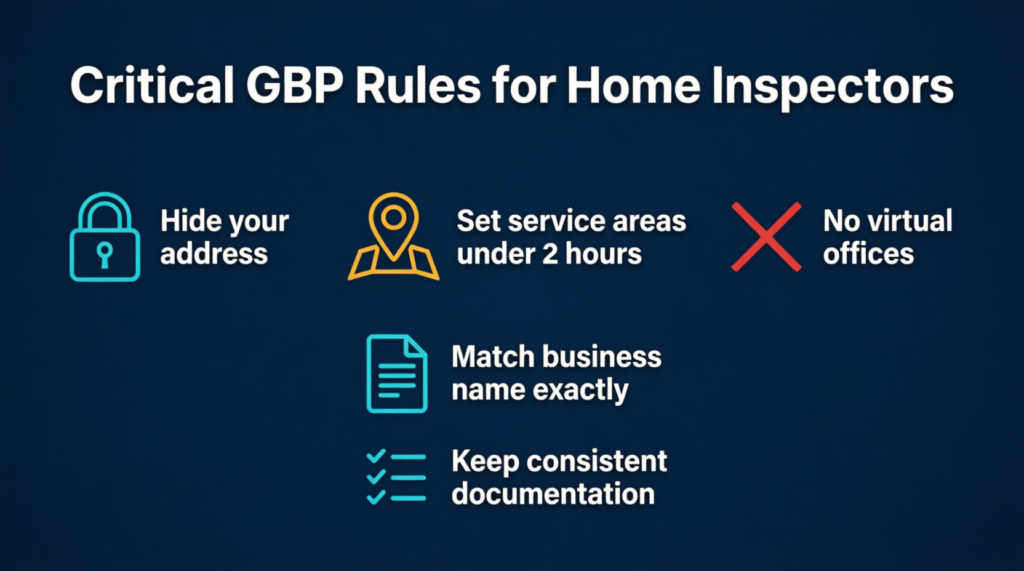
- You Must Hide Your Address: If you don’t serve customers at your business address, you must remove your address from your Business Profile. If you are a service-area business, you should hide your business address from customers.
- Define Your Service Area: Instead of a physical pin on the map, you can set up to 20 service areas based on the cities, postal codes, or other areas you serve.
- Mind the Driving Limit: The boundaries of your overall service area shouldn’t be more than about 2 hours of driving time from where your business is based.
- Virtual Offices are Banned: P.O. boxes or mailboxes located at remote locations aren’t acceptable. If your business rents a physical mailing address but doesn’t operate out of that location (a virtual office), that location isn’t eligible for a Business Profile.
If you list a physical address on Google, you are claiming to be a “Storefront.” Businesses showing their address on Google should maintain permanent fixed signage of their business name at the address. If you list an office address but lack permanent exterior signage or don’t accept walk-in customers during stated hours, Google will flag your profile for misrepresentation.
3. Best Practices for a Bulletproof Profile
To avoid suspensions and build trust with Google’s verification systems, you need perfect consistency across the web.
- Exact Name Matching: Your profile name must perfectly match your real-world business identity. Keep business details consistent across your site, Merchant Center, and Google Business Profile. If your legal DBA is “Elite Group Inspection Professionals,” do not name your profile “Elite Group Home Inspections Los Angeles.”
- Consistent Documentation: Ensure your business license, tax documents (like W-9s), and insurance certificates all use the exact same spelling of your business name.
- Accurate Operating Hours: Only list the hours when your staff is actually available to respond to customers.
4. Step-by-Step Reinstatement Guide
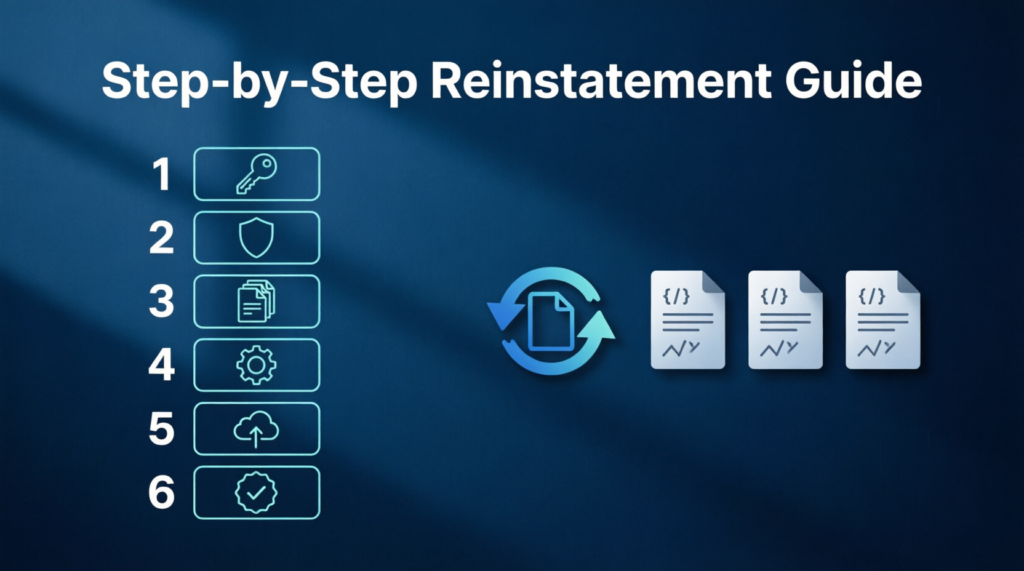
If you are currently facing a suspension, do not panic and do not immediately hit the “Appeal” button before fixing the underlying issues. Follow these steps:
- Diagnose the Restriction Level: Start by reading every notification in your dashboard to see if the restriction was placed on the Google account, the Business Profile, or both.
- Clear Account Restrictions: If the Google account managing the profile is restricted, that must be fixed first. Alternatively, you can create a new Google account and add it as an owner to your Business Profile. Wait 7 days, change the new account to “Primary owner,” and then remove the restricted account entirely before submitting an appeal.
- Fix the Listing Data: Before appealing, audit your profile. If you are a home inspector, remove your physical address so it is hidden from the public. Add your designated service areas (keeping them under a 2-hour drive). Ensure your business name is exactly as it appears on your legal paperwork.
- Gather Bulletproof Evidence: Standard documents are essential. Evidence that can help strengthen your appeal includes official business registration, a business license, tax certificates, and utility bills for the business (like electricity, phone, or internet).
- Provide Physical Proof (If Applicable): If you are attempting to appeal a misrepresentation suspension for a physical office, you must prove the space operates exactly as represented. This includes providing a commercial lease agreement, exterior photos showing signage, interior photos of the customer-facing space, and potentially a video walkthrough.
- Submit a Detailed Appeal: When you submit your appeal, explain exactly what your business does, how it serves customers, and why your business name accurately represents your service. Address any confusion directly; if Google Street View shows an empty lot, explain why in your appeal.
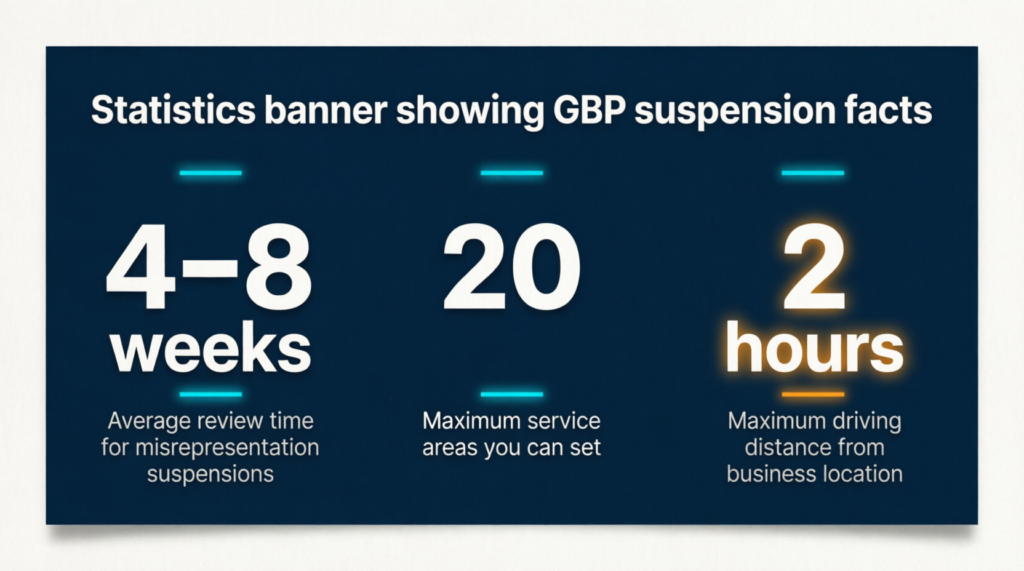
Dealing with a Google Business Profile suspension can be a lengthy process, misrepresentation suspensions can take 4-8 weeks for review. However, by adhering strictly to Google’s Service Area Business guidelines, maintaining flawless documentation, and systematically addressing account restrictions, you can restore your online visibility and get back to serving your clients.